Short answer
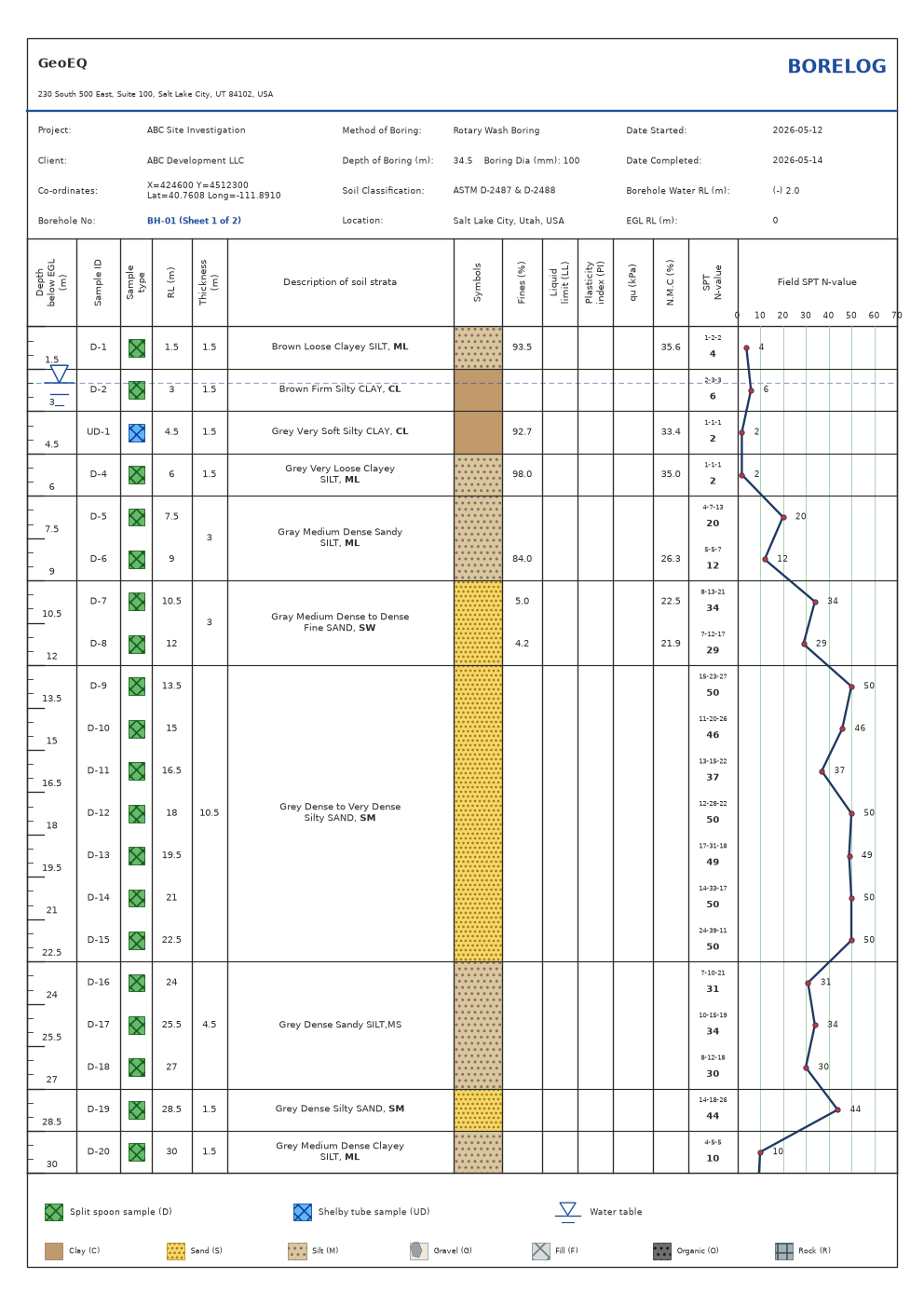
In GeoEQ SPT Logs, choose File, then Company settings, and enter your company name, address and logo, then pick a header style and accent colour. These settings are drawn on every sheet of every project, so the borelog template is set up once.
Steps
- 01
Open Company settings
Choose File, then Company settings. Everything in this window is drawn on every sheet of every project.
- 02
Enter the company name and address
Type your company name and address. They appear in the header of each boring log sheet.
- 03
Add your logo
Select the Logo image field and choose a PNG or JPG file.
- 04
Pick a header style
Choose Letterhead (the default), Blue title bar, Three panels or Boxed logo card.
- 05
Set the accent colour and row lines
Choose an accent colour, which is used for the title, rules and borehole number. Switch light horizontal row lines on or off.
- 06
Choose the sheet title and water row label
Pick the Sheet title printed at the top of every sheet: BORELOG, BORING LOG, BOREHOLE LOG, BORE LOG, SOIL BORING LOG, LOG OF BORING, or your own wording. Pick the Water row label, such as Groundwater Level or Water Table. The unit is added automatically.
- 07
Check an open borehole
Open any borehole and look at the sheet on the right. Changes apply to all sheets, including those in other projects.
Before you start
A borelog template in this app is not a file you design. The layout is built in, and Company settings controls the parts that carry your identity: name, address, logo, header style, accent colour, row lines, sheet title and water row label. Set them once on each computer.
Choose the sheet title to suit the audience. Boring log is the usual term in the United States, and borehole log in the UK and internationally.
Common problems
The company name does not appear on an older project. Settings are shared across projects, so every sheet should show them. Confirm that the name and address were entered in Company settings.
The logo does not appear. Use a PNG or JPG file, and select it again in the Logo image field.
A colleague sees a different header. Company settings live on each computer in company.json under %APPDATA%. Enter them on every machine that prints sheets.
What to do next
Export a single borehole or a whole project to PDF to see the header on paper. The export tutorial shows both routes.
Frequently asked questions
How do I change BORELOG to BORING LOG or BOREHOLE LOG?
Use File, then Company settings, and pick a Sheet title. The options are BORELOG, BORING LOG, BOREHOLE LOG, BORE LOG, SOIL BORING LOG and LOG OF BORING, or you can type your own. The body of the sheet follows the choice, so a sheet headed BORING LOG says Boring No: and End of boring.
What image formats can I use for the logo?
PNG or JPG.
Do company settings apply to old projects?
Yes. Company settings are drawn on every sheet of every project, because they are stored once for your user account and not inside each project file.
Where are the company settings stored?
In %APPDATA%\GeoEQ\SPT Logs\company.json. Nothing is stored in the installation folder, so updating or uninstalling the app does not remove them.