Short answer
Open Connect AI in GeoEQ SPT Logs, choose your AI app, copy the geoeq-borelogs server entry into that app's config, then restart the app and ask about your project. The assistant can then read, check, draw and export boreholes from your .sbl files, and it can change them only if you allow writing and approve each change.
Steps
- 01
Open Connect AI from the rail
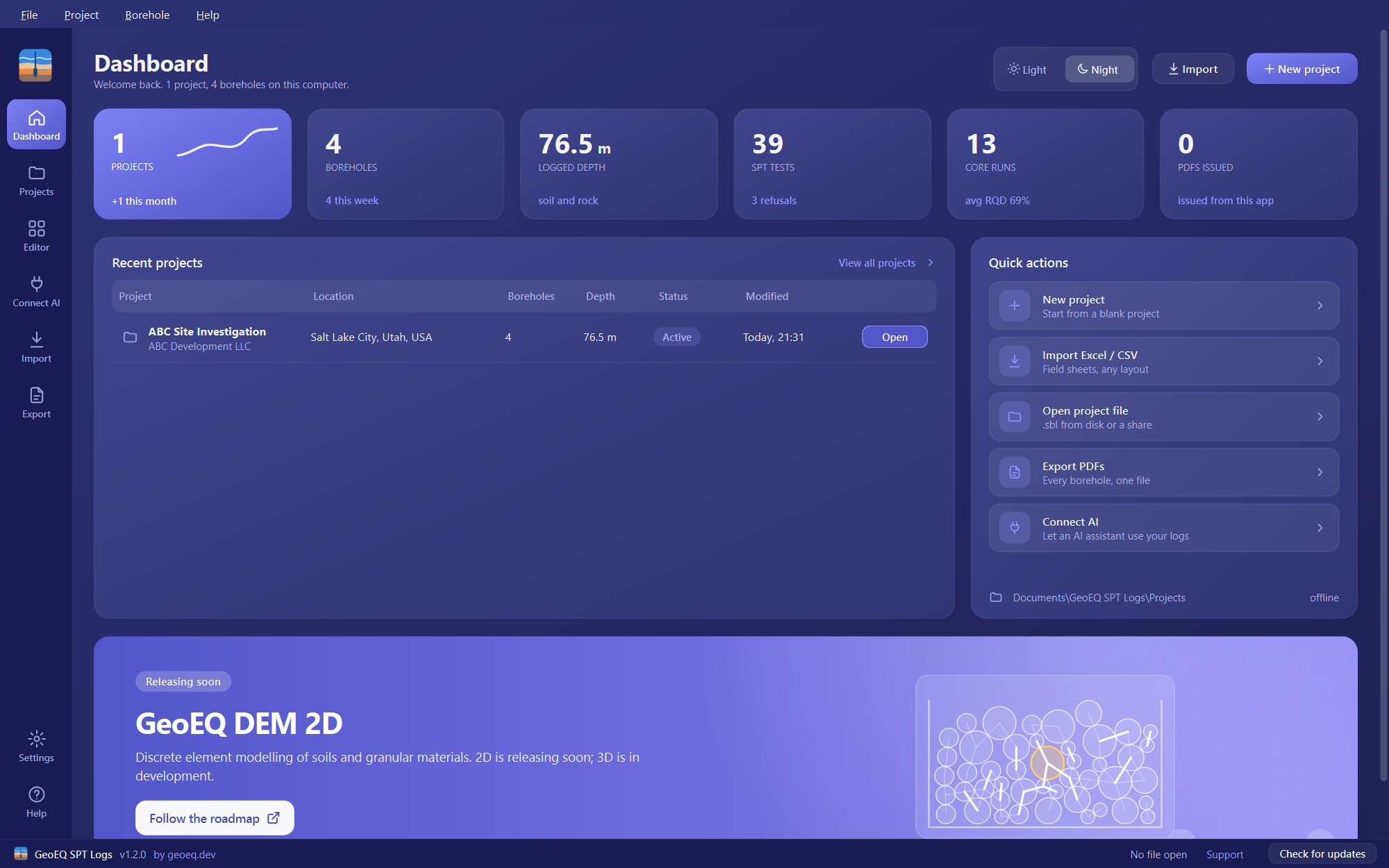
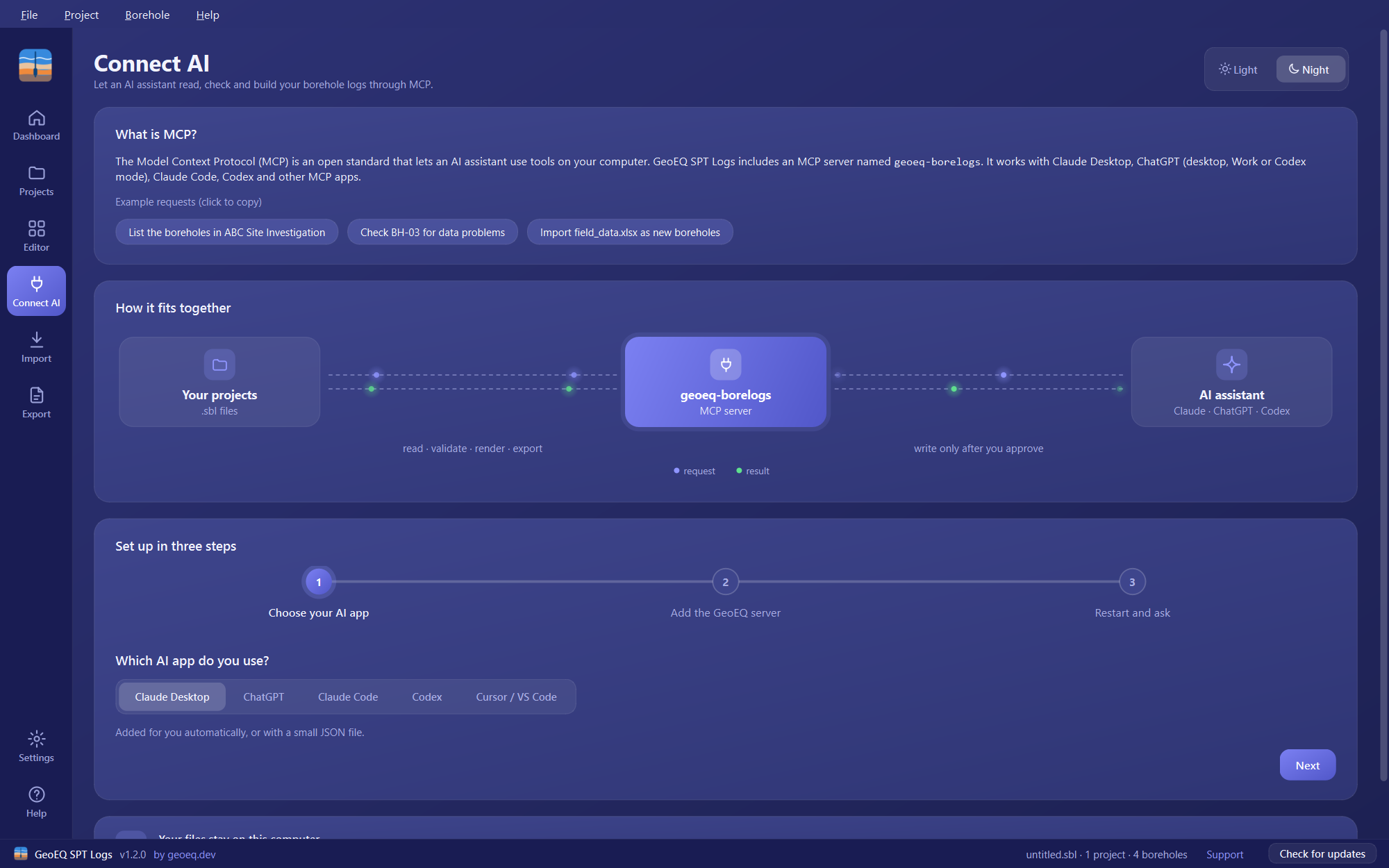
In GeoEQ SPT Logs, click Connect AI in the left rail. The Dashboard also has a Connect AI quick action under Quick actions. The page explains what MCP is, shows how your projects, the geoeq-borelogs server and the AI assistant fit together, and lists three example requests.
- 02
Step 1: Choose your AI app
Under Set up in three steps, pick the app you use: Claude Desktop, ChatGPT, Claude Code, Codex or Cursor / VS Code. Claude Desktop can be set up for you automatically or with a small JSON file. ChatGPT is added in the desktop app in Work or Codex mode. Claude Code takes one command in a terminal. Codex uses its config.toml file. Cursor and VS Code each use a small JSON file.
- 03
Decide whether to allow writing
On step 2, the switch labelled Allow the AI to create and correct boreholes is off by default, which makes the connection read-only. Turn it on only if you want the assistant to create or correct boreholes. The configuration shown below the switch changes to match, adding the --allow-write option when the switch is on.
- 04
Step 2: Add the GeoEQ server
Add the server entry the page shows, using its Copy button. For Claude Desktop, open Settings, Developer, Edit Config and add the entry to claude_desktop_config.json, or use Add to Claude Desktop automatically if it is offered. For ChatGPT, switch to Work or Codex mode, open Settings (Ctrl+,), then Integrations, Plugins, Add, Add MCP Server, keep the type STDIO, name it geoeq-borelogs and paste the command. For Claude Code, run the claude mcp add command in a terminal. For Codex, add the entry to ~/.codex/config.toml. For Cursor, use ~/.cursor/mcp.json; for VS Code, use .vscode/mcp.json.
- 05
Step 3: Restart the AI app
Close and reopen the AI app so it loads the new server. If you used the automatic option for Claude Desktop, the page asks you to close Claude Desktop, adds the server when it closes, and then asks you to open Claude again. The page shows Added to Claude Desktop once the entry is found.
- 06
Ask about your project
Give the assistant the full path to your .sbl file and ask for something. The page offers three examples: List the boreholes in ABC Site Investigation; Check BH-03 for data problems; Import field_data.xlsx as new boreholes. Click an example on the page to copy it. The first request may ask permission to use the tool; allow it to continue.
- 07
Review changes before they are applied
With writing on, the assistant asks for a dry run first. A dry run reports what would change and writes nothing. Read it, and only agree if it is right; the assistant then applies it. When an existing project file is changed, it is backed up beside itself first. Open the result in GeoEQ SPT Logs and check the sheets yourself.
Before you start
The Connect AI page lets you use an AI assistant you already have with your own boring logs. It does not add an assistant to the app. It starts a small local server, geoeq-borelogs, that the assistant calls to open your .sbl project files, in the same way the app opens them.
Connect AI needs GeoEQ SPT Logs 1.3 or later; version 1.2 does not have it. Do the setup once per AI app. After that, you only need to give the assistant the full path to a project file.
What the assistant can do
The server offers seven tools. Six are always available and one is optional.
- describe: explains what a project contains, including the tables and fields, soil and rock vocabulary, issue codes, sheet kinds and units.
- read: lists the boreholes in a project with a summary row for each (depth, N range, core runs, issue count), or returns one borehole in full with its header, SPT rows, strata and core runs.
- validate: reports data problems, such as unreadable depths or blow counts, core recovery out of order (RQD above SCR, SCR above TCR) and overlapping runs. Problems are counted by type first, then listed with the borehole, table, row and field.
- render: draws one sheet of a borehole as an image, the way the app prints it, so the assistant can look at it.
- inspect_source: looks at an Excel or CSV file of field data before importing, showing each sheet’s columns with example values and a guessed field for each.
- export: writes boring logs as PDF files into a folder, one per borehole or one combined file, in batches. It does not overwrite existing PDFs unless asked.
- write: creates or corrects boreholes, including importing a whole file of boreholes by column mapping. It is offered only when writing is allowed.
Your files and your sign-off
Your files stay on this computer. The AI app talks to the server locally and GeoEQ receives nothing. Your AI app has its own terms for what it sends to its provider, so check them for anything confidential.
The connection is read-only by default. Without the writing option, the write tool is not offered at all, so the assistant cannot change a project however it is asked. With it on, changes are previewed first (a dry run that writes nothing) and applied only after you agree. If an existing file is changed, a backup is made beside it first, and a change can be saved to a new file instead so the original is left alone.
A boring log is an engineering record. The assistant can draft, check and tidy, but the engineer reviews the result and signs it. Open the changed borehole in GeoEQ SPT Logs, check the data and the drawn sheet, and treat anything the assistant says as a suggestion to verify.
Common problems
The assistant does not see the server. Restart the AI app after adding the entry. It loads new servers only when it starts.
The Connect AI page says the AI connector is not included in this build yet. That build of the app does not ship the connector. Install GeoEQ SPT Logs 1.3 or later.
ChatGPT does not find the server in Chat mode or on chatgpt.com. Those connect only to remote servers. Use the ChatGPT desktop app in Work or Codex mode.
The assistant says it cannot write. The connection is read-only. Turn on Allow the AI to create and correct boreholes, copy the updated entry, replace the old one in your AI app and restart it.
The first request asks for permission. This is normal. Allow the tool to continue.
What to do next
Try the example requests on a copy of a project first. To bring field data in, see the Excel and CSV import tutorial, which covers the same mapping the assistant uses, and to deliver the logs see the PDF export tutorial.
Frequently asked questions
What is MCP and do I need to know how it works?
MCP, the Model Context Protocol, is an open standard that lets an AI assistant use tools on your computer. GeoEQ SPT Logs includes an MCP server named geoeq-borelogs. You do not need to know more than the three setup steps on the Connect AI page.
Is the AI built into GeoEQ SPT Logs?
No. The app does not include an assistant. It provides a local server, and you connect your own AI app to it. The assistant is whichever one you already use.
Can the assistant change or delete my boreholes?
Not by default. The connection is read-only unless you turn on Allow the AI to create and correct boreholes. Even then, every change is previewed first and applied only after you agree. Deleting boreholes is not something the write tool does.
Does ChatGPT in the browser work?
No. The Connect AI page notes that standard Chat mode and chatgpt.com connect only to remote servers. Use the ChatGPT desktop app in Work or Codex mode.
Do my project files leave my computer?
The AI app talks to the server locally and GeoEQ receives nothing. What your own AI app sends to its provider is governed by that app, so check its settings before sharing sensitive project data.