Short answer
In GeoEQ SPT Logs, right-click the project and choose Import borehole, pick your Excel or CSV file, and confirm the guessed column mapping in the Assign columns window. The rows are then inserted into a new borehole and the log sheet is drawn.
Steps
- 01
Prepare the Excel or CSV file
Keep one header row and one row per SPT or sample. Useful columns are depth, the three 15 cm blow counts (or a single N), sample ID, the soil description and any lab values such as fines or moisture. Column names do not need to match exactly.
- 02
Start the import from the project
Right-click the project in the explorer and choose Import borehole, then select your file. The same menu takes the office BH-xx Excel template, which creates the borehole with header, samples, blows and strata in one click.
- 03
Check the Assign columns window
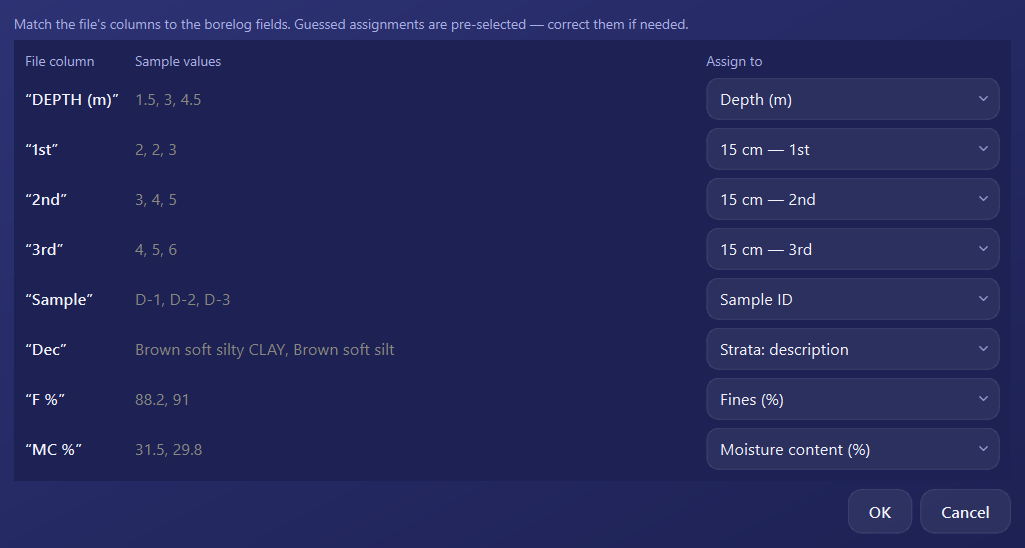
For any other file, the Assign columns window lists each file column with sample values and an automatically guessed target field. For example Dec is guessed as Strata description and SPT N as N-value.
- 04
Correct the mapping and press OK
Change any column that was guessed wrongly, then press OK. The rows are inserted into the new borehole.
- 05
Review the imported data in the tabs
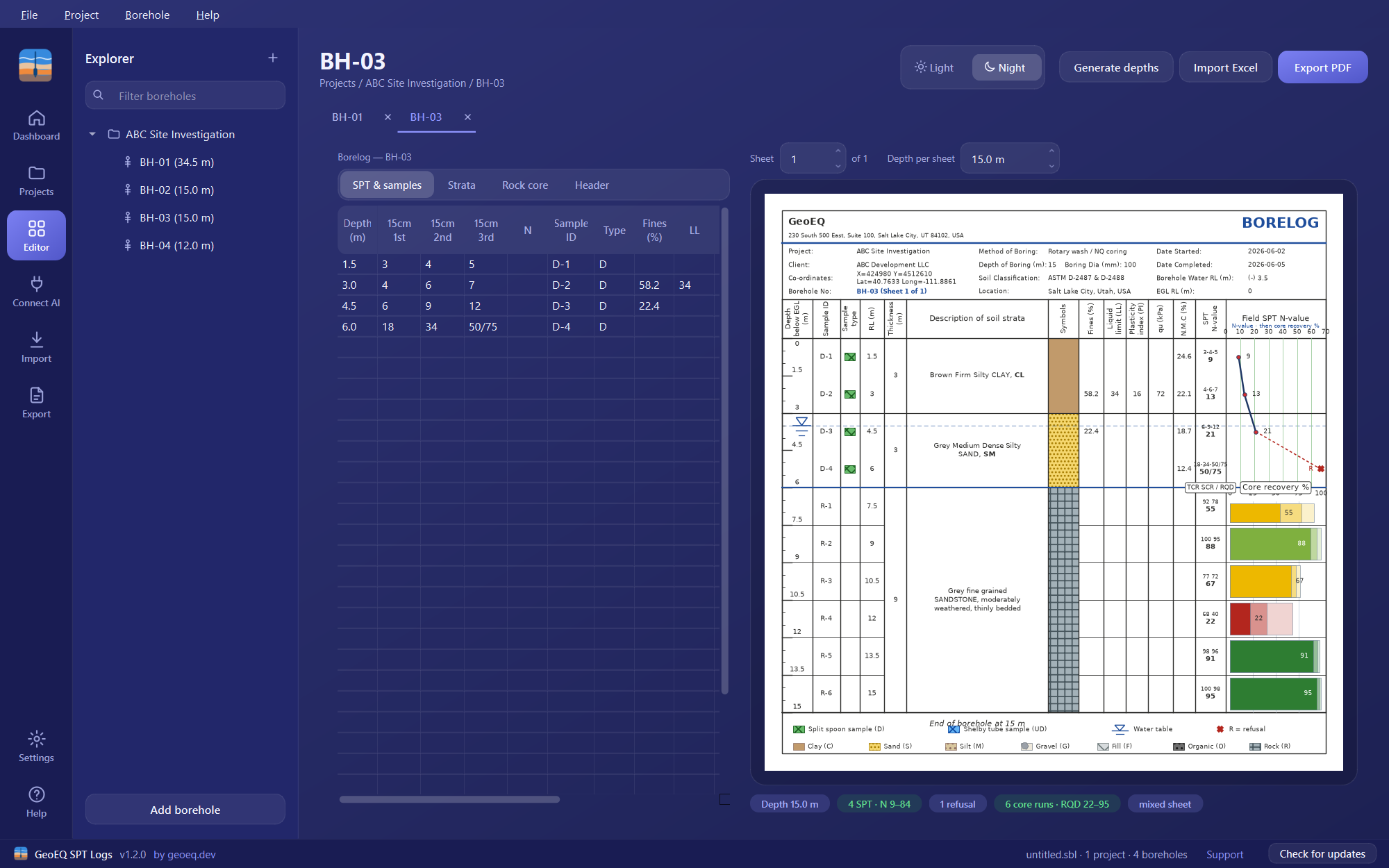
Open the borehole and look through the SPT & samples and Strata tabs. Consecutive rows with the same description are merged into one stratum automatically.
- 06
Complete the header and save
Check the Header tab for coordinates, dates, method and water RL, and fill in anything the file did not provide. Then save the project.
Before you start
Import moves field or office data you already have into a log without retyping it. It creates a borehole inside an existing project, so create the project first and set its units in Project settings. Units change labels only and values are never converted, so make sure the numbers in your file are in the unit the project uses.
If your workbook follows the office BH-xx template layout, the import needs no mapping. Everything else goes through the Assign columns window.
Common problems
A column was guessed wrongly. The auto-guess works from the column name and sample values. Change the target field in the Assign columns window before pressing OK.
Blow counts are missing. If you only have N, the import accepts it and places it in the direct-N column.
Strata look merged. Consecutive rows with the same description become one stratum. This is intended, but check that layers of different soil do not share an identical description in the file.
Only a few rows to add. Copy and paste from Excel into the table instead. The input tables accept Excel-style paste.
What to do next
Set the company header and sheet title, then export the project to PDF. To log rock below refusal, use the Rock core tab described in the rock core tutorial.
Frequently asked questions
Can I import an Excel boring log template into GeoEQ SPT Logs?
Yes. The office BH-xx Excel template imports in one click through Import borehole. Any other Excel or CSV table can be imported by mapping its columns in the Assign columns window.
What if my file has only N-values and no blow counts?
Files with only an N column work. The N values go into the direct-N column of the SPT & samples tab.
Does the import work with CSV files?
Yes. The Import borehole menu accepts any tabular file, including Excel and CSV.
Can I paste from Excel instead of importing?
Yes. The input tables accept Excel-style copy and paste, which suits a single block of rows.