Short answer
Ask your connected AI assistant to inspect the spreadsheet, agree the column mapping with you, run the import as a dry run and apply it only when the preview is right. It needs GeoEQ SPT Logs 1.3 or later with Connect AI set up, and writing switched on.
Steps
- 01
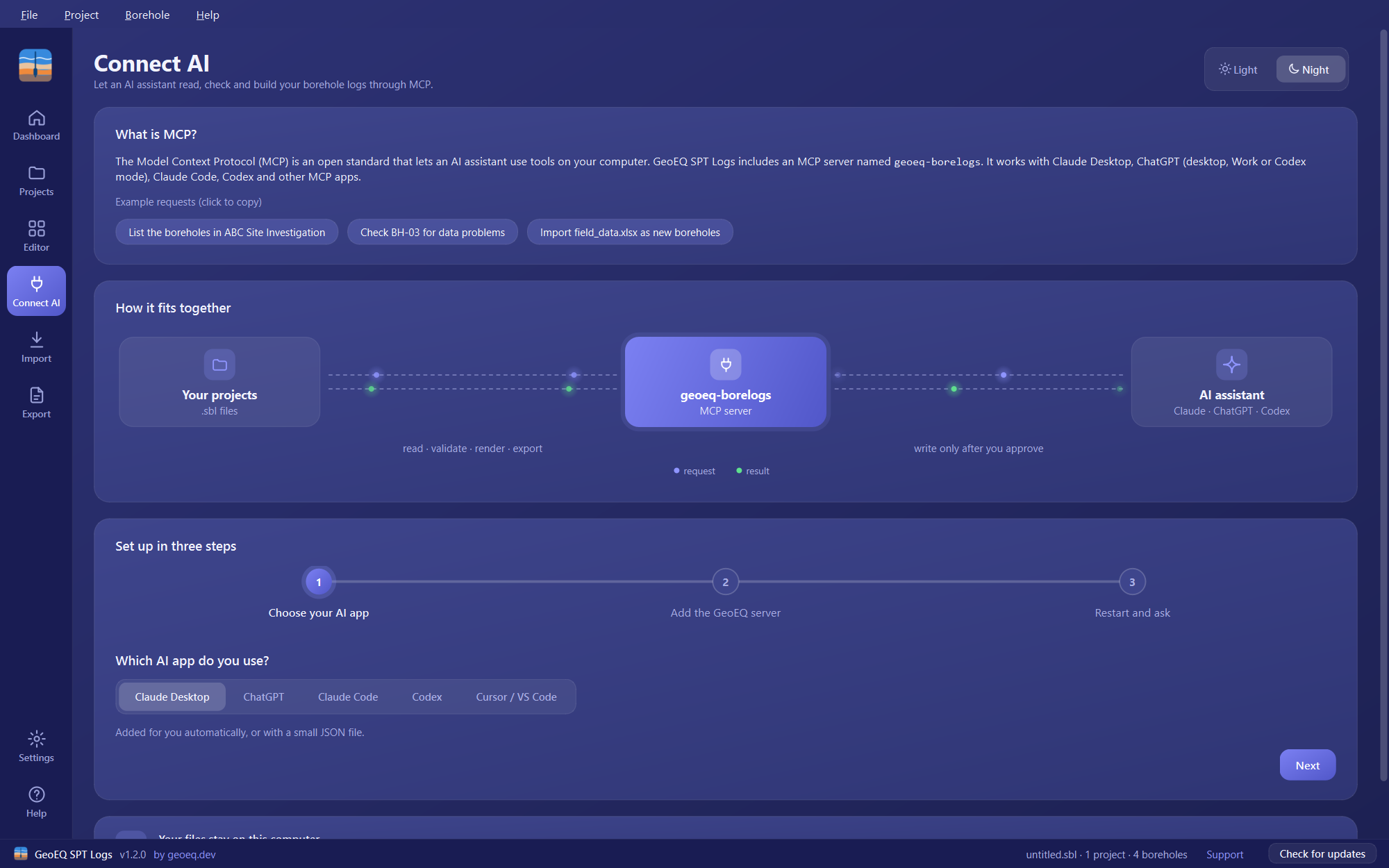
Check Connect AI and writing are set up
Follow the Connect AI tutorial first if you have not. On its step 2, turn on Allow the AI to create and correct boreholes, copy the updated entry into your AI app and restart the app. Without this the write tool is not offered at all, so the assistant can look at the file but cannot import it.
- 02
Ask the assistant to look at the spreadsheet
Give the full path and ask: "Look at E:\data\site_spt.xlsx and tell me which sheets and columns it has." The assistant calls the inspect_source tool. For each sheet it gets the row count, every column with up to three example values, a guessed field for each column, and what kind of table the sheet looks like (spt, strata, core or boreholes). The spreadsheet's rows are not sent to the assistant; only this sample is.
- 03
Review the column mapping the assistant proposes
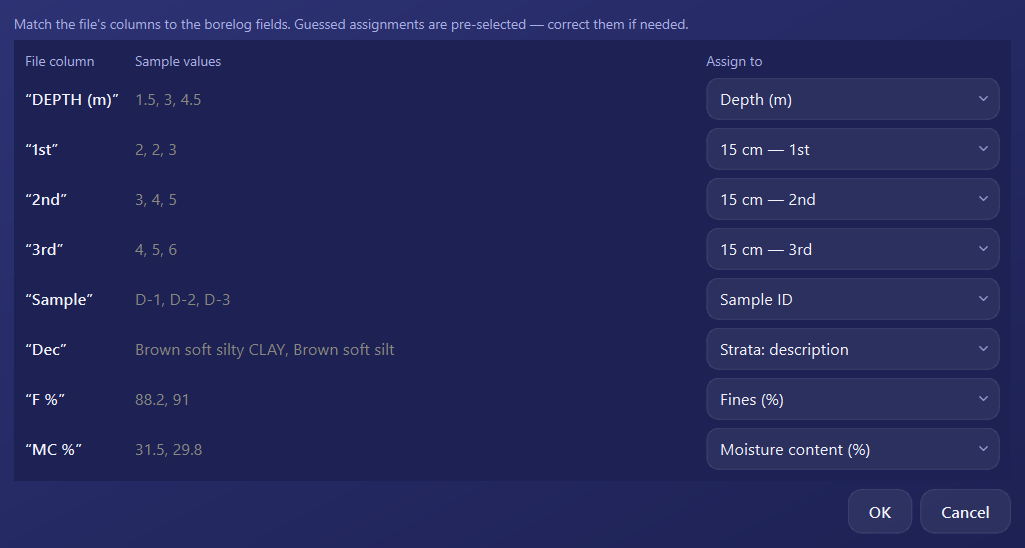
Ask: "Propose how these columns map to the borelog fields, and list anything you are unsure about." The mapping names, for each sheet, the kind of table and which column feeds which field: the borehole column, depth, the three 15 cm blow counts, sample ID, strata description and so on. Check every line against the sheet. A column headed Dec that holds soil descriptions, or two columns with the same heading, are where a guess goes wrong. Correct it in your reply before going on.
- 04
Ask for a dry run into your project
Say: "Import it into E:\projects\site.sbl as a dry run. Skip any borehole that already exists." The assistant calls write with a source mapping and dry_run set to true. Nothing is saved. The result reports how many boreholes were found and how many would be created, replaced or skipped, how many rows of each sheet were used, any warnings, a sample of the first five boreholes and the data issues the imported boreholes would have, counted by code. If the project already holds a borehole of the same name, the dry run stops with an error unless you chose skip or replace.
- 05
Check the preview before you approve
Compare the counts with your file: boreholes found, rows used against rows in each sheet, and rows with no borehole. Read the warnings, such as a depth that is not a number. Look at the issues the preview lists and decide whether they are in the source data. Ask the assistant to run validate afterwards if you want the full list. Only then say: "Apply it."
- 06
Apply the import and open the result
The assistant repeats the call with dry_run set to false. If the project file already existed, a backup is made beside it first. Open the project in GeoEQ SPT Logs, reopening it if it was open, and check a few boreholes in the editor against the original file. Ask for "the first sheet of BH-017" if you want the assistant to draw one with the render tool.
When to use AI and when to do it by hand
AI is worth using when one file holds many boreholes, or when the columns are messy and you would otherwise map them one dialog at a time. For a single borehole in a tidy sheet, the manual Excel import takes about as long as writing the request. This tutorial needs GeoEQ SPT Logs 1.3 or later; the manual route works in version 1.2.
What to check before you approve
- The mapping, line by line, against the sheet. The assistant guesses from headings and a few example values.
- The counts in the dry run against your file: boreholes found, rows used and rows with no borehole.
- The warnings and the issues listed after import. They describe the data as imported, including values that could not be read.
- Whether existing boreholes should be skipped, replaced or left to stop the import.
The assistant drafts the import. You review it and you sign the logs.
Common problems
The assistant says it cannot write. The connection is read-only. Turn on Allow the AI to create and correct boreholes, replace the entry in your AI app and restart it.
The dry run stops because boreholes already exist. Ask for existing boreholes to be skipped, or replaced if you want the file’s tables to overwrite them.
A column is not found, or two columns share a heading. Name the column by its position instead, or fix the heading in the file.
The file has several sheets. Say which sheet each table comes from.
Many issues after import. Ask the assistant to run validate on the project and group the issues by code. See the next tutorial in this track.
What to do next
Check the imported boreholes with AI error checking, then deliver them with AI PDF export.
Frequently asked questions
Does my spreadsheet go through the AI?
Not row by row. The assistant looks at a sample of each column to choose the mapping. The rows then go from the file into the project inside the local geoeq-borelogs server. What your AI app sends to its provider is set by that app, so check its settings for confidential data.
How many boreholes can one import take?
Any number through a file source. Typing boreholes straight into the write call is limited to 50 per call, which is why the assistant is told to map a file rather than retype rows.
What happens to boreholes that already exist in the project?
By default the import stops with an error that lists some of the clashing names. The source can instead be set to skip them or to replace the tables the file provides, and the dry run reports how many are created, replaced or skipped.
Can the assistant import a file with several sheets?
Yes. Soil tests, strata, core runs and a one-row-per-hole sheet can each be mapped. If the file has more than one sheet, each mapped table must name its sheet.