Short answer
Ask your connected AI assistant to validate the whole project, group the issues by code, then propose single-cell corrections as a dry run for you to approve. It needs GeoEQ SPT Logs 1.3 or later with Connect AI set up, and writing switched on for the corrections.
Steps
- 01
Check Connect AI is set up
Follow the Connect AI tutorial first if you have not. Checking only reads the project and works with writing off. Turn on Allow the AI to create and correct boreholes only when you reach the correction step.
- 02
Ask the assistant to validate the project
Say: "Check every borehole in E:\projects\site.sbl for data problems and summarise them by type." The assistant calls the validate tool. It reports how many boreholes were checked and how many have issues, then counts the issues by code with an example, and lists them one by one with the borehole, table, row and field. Large lists are paged, so the assistant may ask for the next page.
- 03
Understand what each issue code means
The codes the server reports are: depth_empty, depth_not_a_number and bad_blow_count for SPT rows; run_missing_depth, run_bottom_not_below_top and run_overlaps_previous for core run depths and order; not_a_percentage for a TCR, SCR or RQD outside 0 to 100; scr_above_tcr and rqd_above_scr for recovery values that cannot be right, since RQD cannot exceed SCR and SCR cannot exceed TCR; and no_strata for a borehole with SPT tests and no strata described. Ask: "Explain the issues in BH-03 in plain terms."
- 04
Look at the data behind each issue
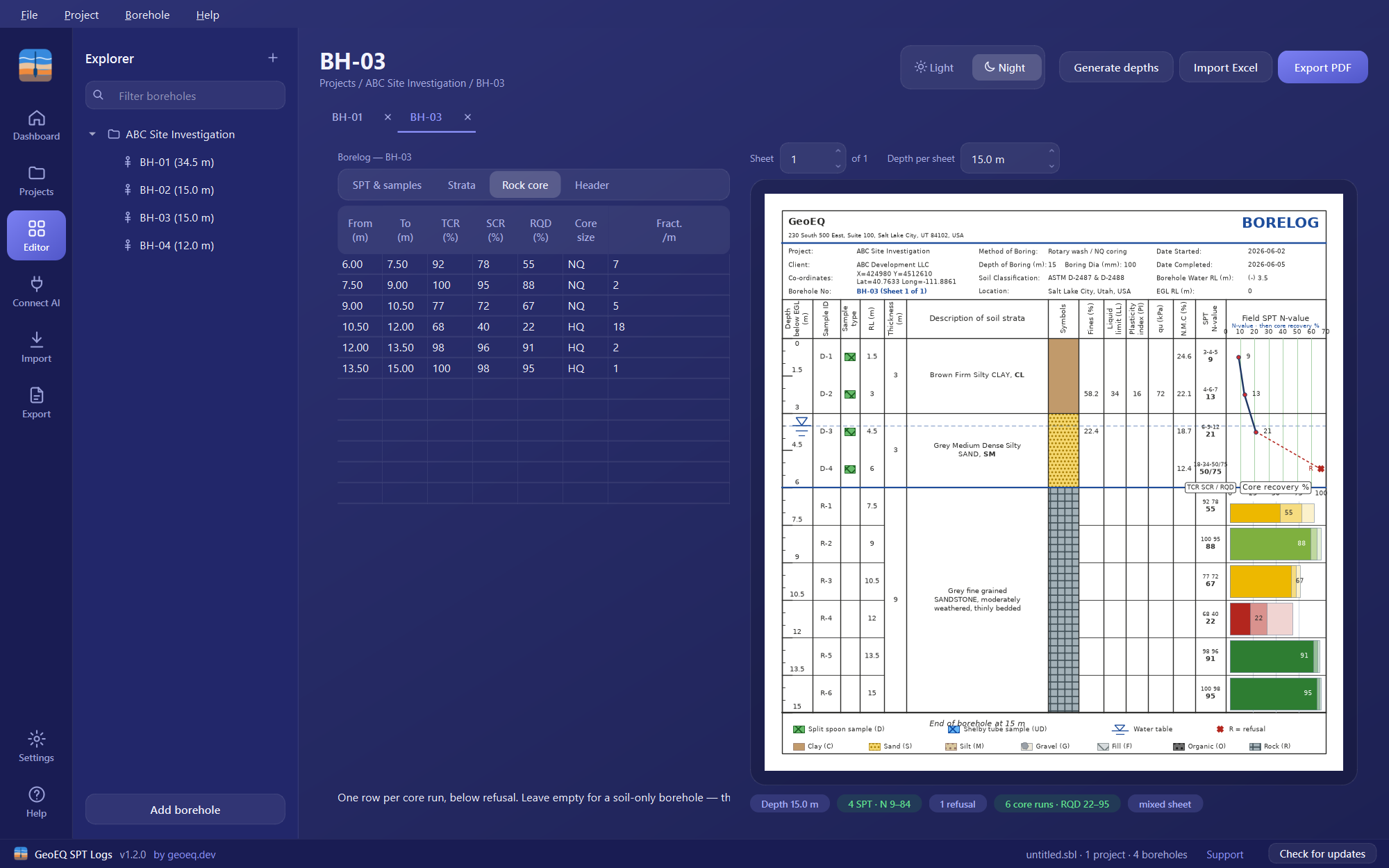
For a borehole you are unsure about, ask: "Show me BH-03 in full and draw sheet 1." The assistant uses the read tool for the header, SPT rows, strata and core runs, and the render tool for the sheet. Check the entry against the field sheet or lab record. The validate tool only finds values that are impossible or unreadable. A wrong value that looks plausible will not be flagged.
- 05
Ask for corrections as a dry run
Say: "Propose fixes for the RQD and SCR issues in BH-03, and show them as a dry run." The assistant calls write with fixes, each one a single cell addressed as validate reported it: borehole, table, row, field and the new value. With dry_run set to true each fix is listed with its old and new value and nothing is saved. Do not accept a fix just to clear a message: if the field sheet says RQD is 88, the entry stays 88 until you have found the true value.
- 06
Apply the corrections and validate again
When every old and new value is right, say "Apply them." The assistant calls write with dry_run set to false. The project file is backed up beside itself first, or you can ask for the corrected project to be saved under a new name so the original is untouched. Then ask the assistant to validate the project again, and open the corrected boreholes in the app to check the rock core tab.
When to use AI and when to do it by hand
Use the assistant when a project has many boreholes and you want every one checked, with problems grouped so the same mistake is not read fifty times. For one borehole you are logging now, the manual rock core tutorial and the Rock core tab already show the checks as you type. This tutorial needs GeoEQ SPT Logs 1.3 or later; the manual route works in version 1.2.
What to check before you approve
- Each correction’s old value and new value against the field record, not against the message that flagged it.
- That the fix addresses the right borehole, table, row and field. Rows count from 1 in the table as stored.
- That correcting one core value has not hidden a problem in another run of the same borehole.
- The result of validating again after the fix.
The assistant suggests; the engineer decides and signs.
Common problems
The assistant says it cannot write. The connection is read-only. Turn on Allow the AI to create and correct boreholes, replace the entry in your AI app and restart it.
A fix is refused. The server rejects an unknown table or field, a row number out of range or a value that is not text or a number. The message says which, so ask the assistant to correct the fix and run the dry run again.
The project holds several projects. Tell the assistant which project name to check.
Validation shows no issues but the log looks wrong. Validation does not judge whether values are true. Compare the drawn sheet with your records.
What to do next
Export the checked logs to PDF, or import more data and check it the same way.
Frequently asked questions
What does validate check that the app does not?
It reports the same data problems the app does, but across every borehole in a project at once and counted by type, so a project of hundreds of boreholes stays readable.
Can validate tell me which value is wrong?
No. It tells you where two values disagree, for example RQD above SCR in run 3, not which of them was mistyped. That is for you to settle from the field record.
Can the assistant delete a borehole?
No. The write tool creates and corrects boreholes only. Corrections are single cells or replaced tables, previewed first.