Short answer
Give your connected AI assistant the field sheet, ask it to draft the borehole, review the dry run and apply it, then render the sheet and compare it with the original. It needs GeoEQ SPT Logs 1.3 or later with Connect AI set up, and writing switched on.
Steps
- 01
Check Connect AI and writing are set up
Follow the Connect AI tutorial first if you have not. Turn on Allow the AI to create and correct boreholes, copy the updated entry into your AI app and restart it. With writing off, the assistant can still look at projects but the write tool is not offered.
- 02
Give the assistant the field sheet
Attach the photo or scanned PDF to your AI app, or paste the typed notes, and ask: "Read this field sheet for BH-07 and list what you can see: header details, SPT depths and blow counts, soil descriptions and any core runs. Mark anything you cannot read." Reading the sheet is done by your AI app, not by GeoEQ SPT Logs, which has no tool for photographs. Read its transcription against the paper before asking it to continue.
- 03
Correct the transcription
Fix every misread number and unclear word in your reply. Blow counts, depths and refusal entries such as 50/75 are the usual places for a handwriting error. Tell the assistant which units the sheet uses and which depth is the final depth.
- 04
Ask for a dry run
Say: "Create BH-07 in E:\projects\site.sbl as a dry run." The assistant calls the write tool with the borehole's name, depth, water depth, header details, SPT rows, strata and core runs written in directly, with dry_run set to true. Nothing is saved. The result shows the borehole that would be created, a summary of what it would contain and the data issues it would have, so a blow count it could not read shows up here.
- 05
Review the dry run and apply it
Check the summary against the sheet: depth, number of tests, N range, number of strata and core runs. Resolve any listed issue by correcting the entry rather than leaving it. Then say: "Apply it." The assistant repeats the call with dry_run set to false. If the project file already existed, it is backed up beside itself first. A borehole name that already exists is refused unless you ask to replace parts of it.
- 06
Render the sheet and compare it with the original
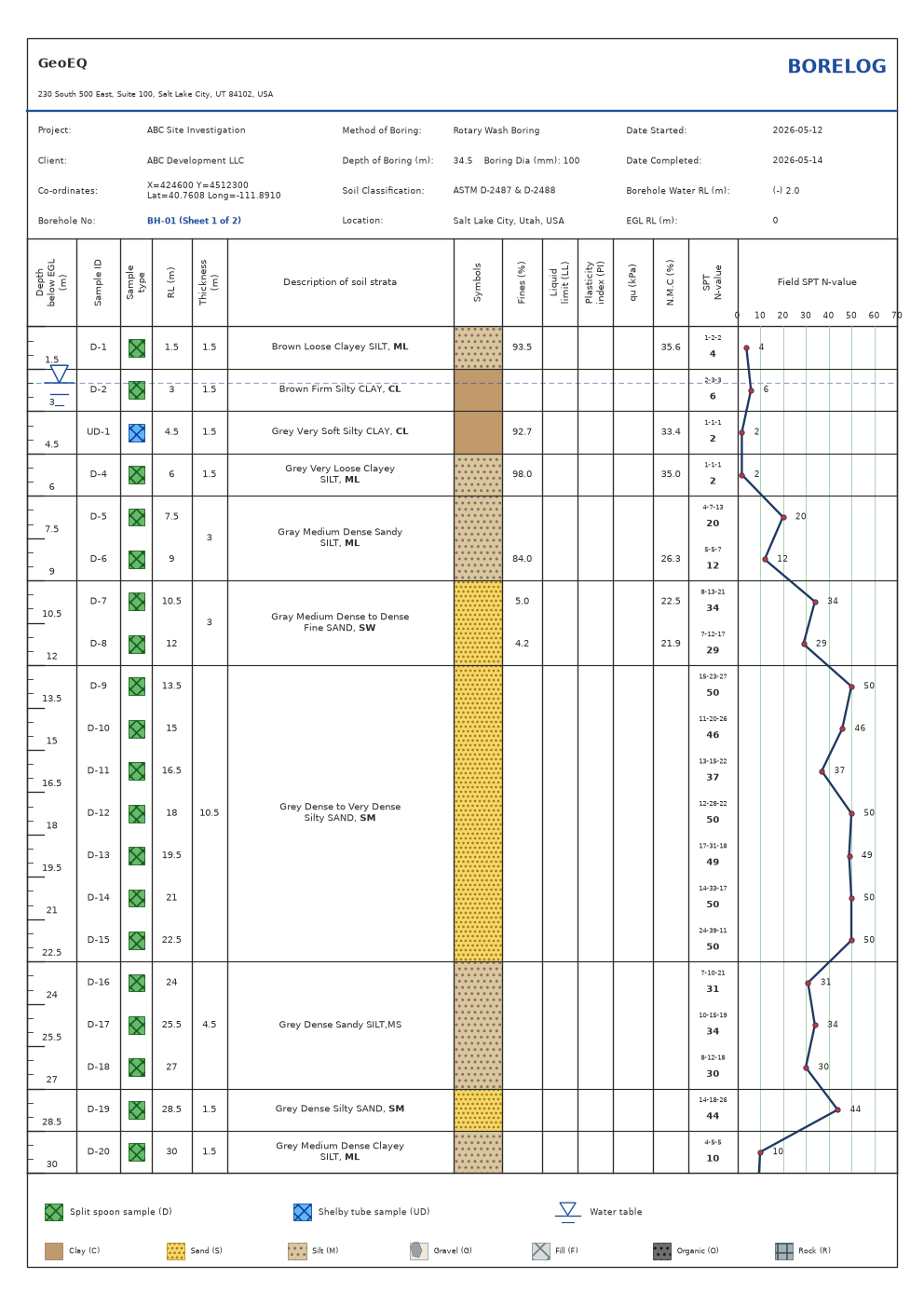
Ask: "Draw sheet 1 of BH-07." The assistant calls the render tool, which draws the sheet exactly as the app prints it. Compare the drawn log with your field sheet: depths, descriptions, N-values and the water level. Then open the project in GeoEQ SPT Logs, reopening it if it was open, and check the editor tables.
When to use AI and when to do it by hand
AI saves time when you have a sheet of typed notes or a legible scan and several boreholes to enter. A single short borehole is quicker to enter by hand, and a hard-to-read photograph may take longer to correct than to type. This tutorial needs GeoEQ SPT Logs 1.3 or later; the manual route works in version 1.2.
What to check before you approve
- Every number in the dry run against the paper sheet: depths, blow counts, strata bottoms, water depth and core values.
- The units. The server stores values as given and does not convert them.
- Soil descriptions and types. Wording copied from a handwritten sheet may have been tidied or interpreted.
- The drawn sheet from render, compared with the original side by side.
The assistant drafts the borehole. The engineer checks it and signs the log.
Common problems
The assistant says it cannot write. The connection is read-only. Turn on Allow the AI to create and correct boreholes, replace the entry in your AI app and restart it.
The borehole already exists. The write is refused. Ask for single-cell corrections, or for the parts you provide to replace the existing ones.
The dry run lists issues. Typically a depth or blow count that is not a number, or a core run whose RQD is above its SCR. Correct the entry, not the paper, and run the dry run again.
A value you did not enter appears. Ask the assistant where it came from and change it. Do not apply a dry run you have not read.
What to do next
Run an AI check across the project, then export the sheets.
Frequently asked questions
Does GeoEQ SPT Logs read the photo?
No. Your AI app reads the sheet and then passes the values to the app's server. The server only receives the typed values the assistant sends, and it reports data problems it can detect, such as an unreadable blow count.
How many boreholes can the assistant write at once this way?
Up to 50 in one call. For hundreds of boreholes held in a spreadsheet, import the file instead.
Can the assistant change a borehole that already exists?
Yes, either one cell at a time or by replacing the parts you provide, such as its SPT rows. Both are previewed first. The write tool cannot delete boreholes.