Documentation / Getting started
Dashboard, Projects page and Night theme in GeoEQ SPT Logs 1.3
Short answer
From version 1.3, GeoEQ SPT Logs opens on a Dashboard that totals your projects, boreholes, depth, SPT tests, core runs and exported PDFs. A Projects page lists every project on the computer, with status filters, batch actions and a strata preview, and a Light or Night theme switch sits at the top of each page.
Requires GeoEQ SPT Logs 1.3 or later. The current release is 1.2; everything else in this guide works in it.
- 6 totals
- projects, boreholes, depth, SPT, cores, PDFs
- 4 statuses
- active, draft, issued, archived
- Light / Night
- remembered between sessions
This page describes features that need GeoEQ SPT Logs version 1.3 or later. The current public release is 1.2.0.
What is on the Dashboard?
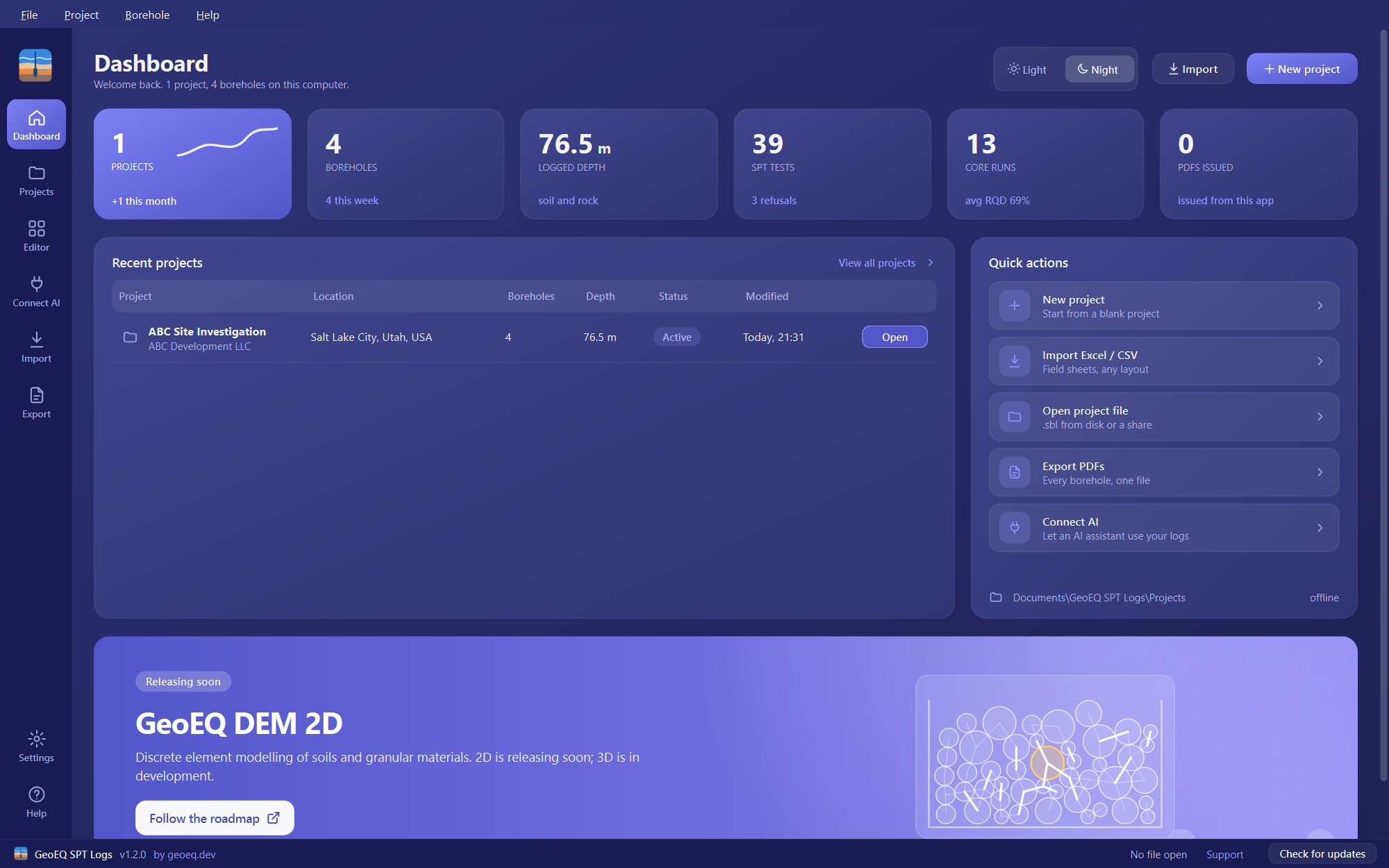
A navigation rail on the left holds Dashboard, Projects, Editor, Connect AI, Import, Export, Settings and Help. The Dashboard shows:
| Card | What it counts |
|---|---|
| Projects | Every project found on this computer, with how many changed this month |
| Boreholes | Every borehole, with how many are in projects changed in the last 7 days |
| Logged depth | Total borehole depth, marked “soil” or “soil and rock” |
| SPT tests | All SPT rows, with the number of refusals |
| Core runs | All rock core runs, with the average RQD |
| PDFs issued | PDFs exported from this app |
Below the cards, Recent projects lists the five most recently modified projects with an Open button, and Quick actions offers New project, Import Excel / CSV, Open project file, Export PDFs and Connect AI. A line at the bottom shows the default Projects folder.
Where does the app look for projects?
It scans the .sbl files in Documents\GeoEQ SPT Logs\Projects and the files you opened or saved recently. A project saved elsewhere appears once you have opened it. Unreadable files are skipped, so one damaged file does not break the page.
What can I do on the Projects page?
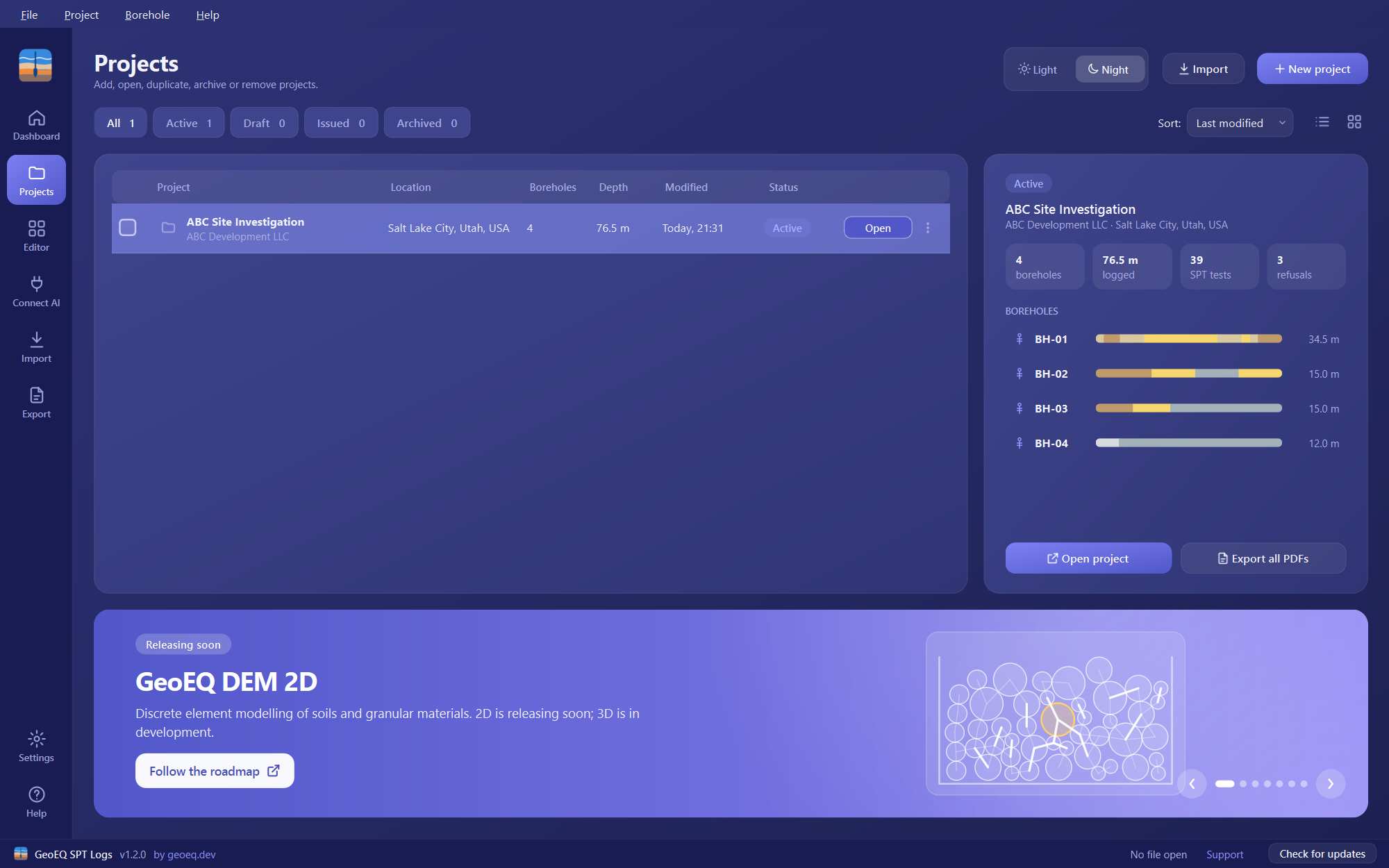
- Filter by status with the chips All, Active, Draft, Issued and Archived, each with a count.
- Sort by Last modified, Name or Depth, and switch between list and card view.
- Select projects with the check boxes to get a bar with Open (one project), Duplicate, Export PDFs, Archive or Unarchive, and Remove. Each row also has a menu with the same actions.
- Duplicate copies a project inside its file, adds “(copy)” to the name and sets the status to Draft.
- Remove asks for confirmation. When the project is the last one in its file, the file moves to the Recycle Bin.
The details panel shows the status, client and location, boreholes, logged depth, SPT tests, refusals, and a coloured strata strip for each borehole, proportional to layer thickness and coloured by soil type. Open project and Export all PDFs sit at the bottom.
A status is stored in the project file and is Active until changed.
How do I switch between Light and Night?
Use the Light and Night switch at the top of the Dashboard, the Projects page and the editor, or open Settings in the rail. Light (white and blue) is the default. Night is a midnight indigo theme, and the choice is remembered. The sheet stays on white paper in both.
What is Connect AI?
Connect AI in the rail connects an AI assistant to your logs through an MCP server. See Connect AI, or follow the tutorial to connect an AI assistant to your boring logs.
Step-by-step tutorials
Frequently asked questions
Which version has the Dashboard and Projects page?
Version 1.3 or later. Version 1.2.0 is the current public release, so these pages appear when 1.3 is released.
Where do the Dashboard totals come from?
From the .sbl files in the default Projects folder in Documents, plus files you opened or saved recently. Counts are read the same way the sheet reads them, so they match what the sheet shows.
What happens when I remove a project?
The app asks you to confirm. If the project was the only one in its file, the file goes to the Recycle Bin. Otherwise the project is deleted from the file and this cannot be undone.
Does the Night theme change my printed logs?
No. The theme changes the app window only. The borelog sheet is drawn on white paper in both themes.