Documentation / Data in and out
Export boring logs to PDF: one borehole or a whole project
Short answer
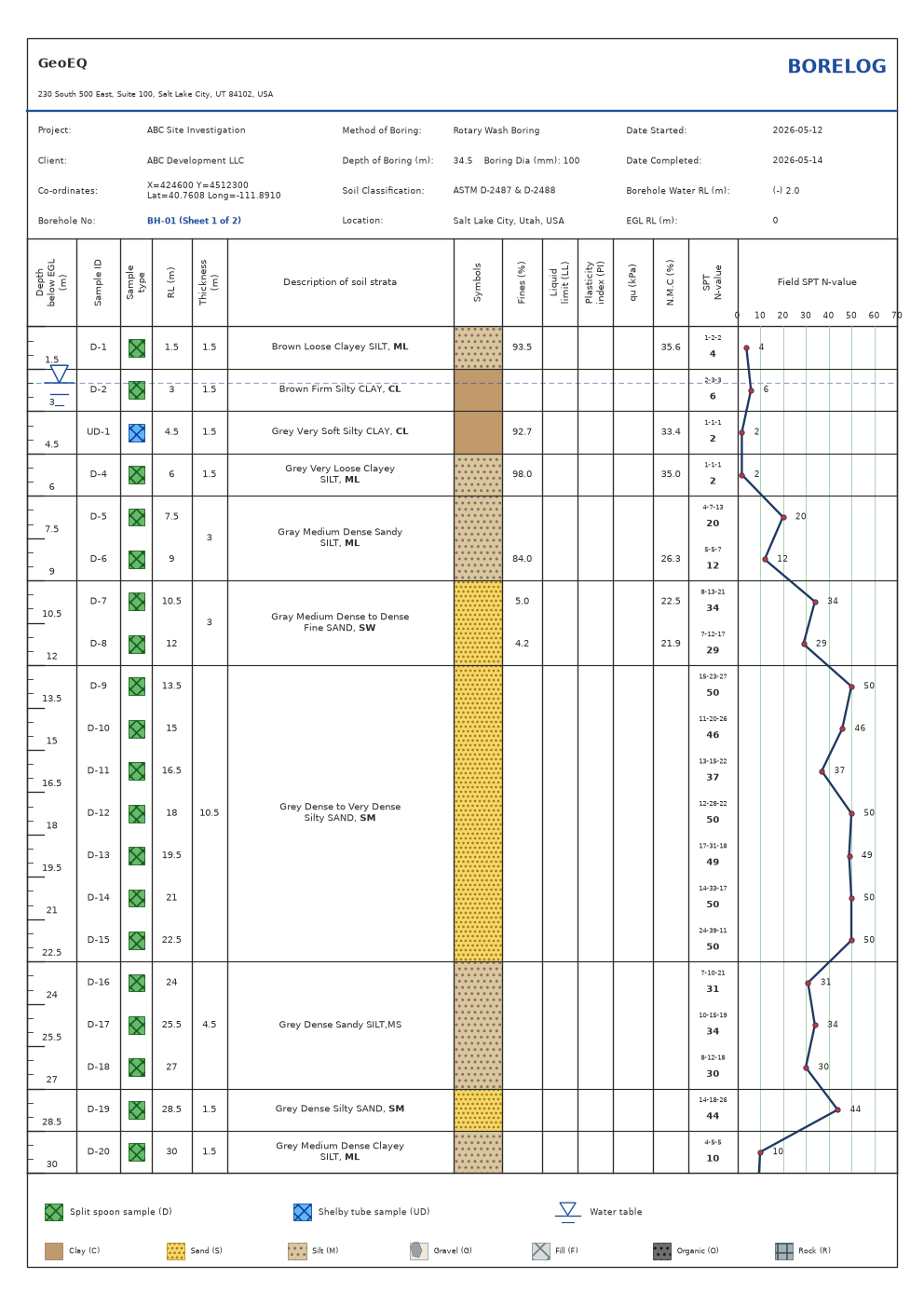
To export one borehole, press Export PDF in its borelog tab, or right-click it and choose Export PDF. To export a whole project, right-click the project and choose Export project PDF, which writes every borehole's sheets, in order, into a single PDF. The PDF is the same drawing you see on screen.
- A4
- page size, one page per sheet
- ~30 m
- default depth per sheet
- 1 file
- for every borehole in a project
How do I export one borehole to PDF?
Open the borehole and press Export PDF in its borelog tab, or right-click the borehole in the explorer and choose Export PDF. A log that runs to more than one sheet exports every page.
How do I export a whole project to one PDF?
Right-click the project in the explorer and choose Export project PDF. Every borehole’s sheets are written in order into a single PDF. A project file can hold more than one project, so the export includes only the boreholes of the project you right-clicked.
What is in the PDF?
The PDF is the on-screen sheet, drawn at A4 size with one page per sheet. It carries the company header, logo and sheet title from Company settings, the borehole header, the strata symbols, samples, the SPT N-value graph, the water table marker and the legend. If the borehole has core runs, the recovery bars are in the PDF too.
Nothing is converted or redrawn on export, so edits you make in the tables appear in the next PDF.
How are long boreholes split into pages?
The Sheet spinner steps through the pages of a borehole, and Depth per sheet sets how much depth each page covers. The default is about 30 m per sheet, and the box accepts values from 6 to 100. Check how the sheets break on screen before exporting, because the PDF breaks in the same places.
What should I check before exporting?
- The badges under the sheet. They report data problems such as an unreadable depth or blow count, and a row that cannot be read is missing from the drawn sheet and the PDF.
- The sheet title in Company settings, for example BORELOG or BORING LOG.
- The company header, logo and accent colour.
- The groundwater marker, set in the Header tab.
Common problems
The wrong title is printed. The sheet title comes from Company settings. Change it there and export again.
A borehole is missing from the project PDF. Check that it sits under the project you exported in the explorer.
Pages break in the wrong place. Change Depth per sheet for that borehole and export again.
Keep the .sbl project file with the PDF so the log can be reopened and corrected later. The step-by-step version is the tutorial on exporting boring logs to PDF. With version 1.3 you can also ask an AI assistant to export your boring logs to PDF in batches through Connect AI.
Step-by-step tutorials
Frequently asked questions
How do I put all boring logs in one PDF?
Right-click the project in GeoEQ SPT Logs and choose Export project PDF. Every borehole's sheets are written in order into a single PDF.
Does the PDF match what I see on screen?
Yes. The PDF is made from the same drawing as the on-screen sheet, so what you see is exactly what is exported.
Does a deep borehole export all of its pages?
Yes. A multi-sheet log exports all its pages. The default is about 30 m per sheet, and the Depth per sheet box changes it.