Documentation / Data in and out
Connect AI in GeoEQ SPT Logs: use MCP with your boring logs
Short answer
Connect AI adds a local MCP server named geoeq-borelogs to your own AI app, such as Claude Desktop, ChatGPT, Claude Code, Codex, Cursor or VS Code. It is read-only by default, offers seven tools, and your project files stay on your computer. It needs GeoEQ SPT Logs version 1.3 or later.
Requires GeoEQ SPT Logs 1.3 or later. The current release is 1.2; everything else in this guide works in it.
- 7
- tools, six of them read-only
- 3
- setup steps
- Off
- writing, by default
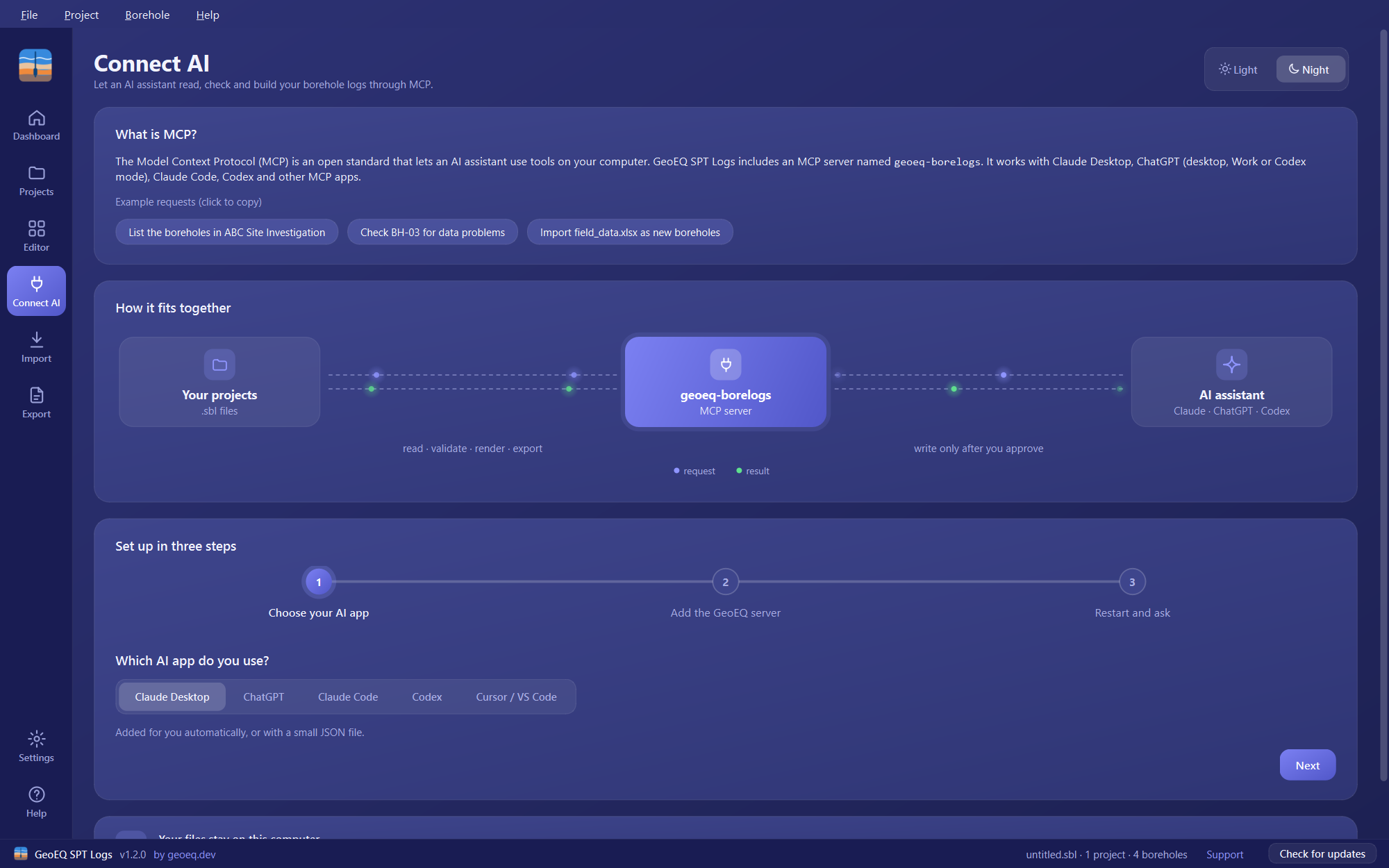
Connect AI needs GeoEQ SPT Logs version 1.3 or later. It is not in version 1.2.
What is Connect AI?
Connect AI is a page in the left rail of GeoEQ SPT Logs 1.3 (the Dashboard also links to it under Quick actions). It does not add an assistant to the app. It sets up a small local server, geoeq-borelogs, that an AI app you already use can call to read your .sbl project files in the same way the app does, and to draw the same sheets.
MCP, the Model Context Protocol, is the open standard that makes this possible: it lets an AI assistant use tools on your computer.
Which AI apps does it support?
| App | How the server is added |
|---|---|
| Claude Desktop | Automatically from the page, or with a small JSON file (claude_desktop_config.json) |
| ChatGPT | In the ChatGPT desktop app, in Work or Codex mode, as an MCP server of type STDIO |
| Claude Code | One claude mcp add command in a terminal |
| Codex | An entry in ~/.codex/config.toml |
| Cursor / VS Code | ~/.cursor/mcp.json for Cursor, .vscode/mcp.json for VS Code |
Standard Chat mode and chatgpt.com connect only to remote servers, so they cannot use this local one.
How do I set it up?
The page walks through three steps:
- Choose your AI app.
- Add the GeoEQ server. Copy the entry the page shows, or for Claude Desktop use Add to Claude Desktop automatically. The page shows “Added to Claude Desktop” once it finds the entry.
- Restart and ask. Restart the AI app so it loads the new server, then ask for something. The first request may ask permission to use the tool.
The page offers three example requests: “List the boreholes in ABC Site Investigation”, “Check BH-03 for data problems” and “Import field_data.xlsx as new boreholes”. Give the assistant the full path to your .sbl file.
Is it read-only?
Yes, by default. In step 2, the switch Allow the AI to create and correct boreholes is off, and the entry shown has no write option. With it on, the entry gains --allow-write, and you copy the updated entry into your AI app.
Without that option the write tool does not exist on the connection, so the assistant cannot change a project however it is asked.
What is a dry run?
With writing allowed, write runs as a dry run by default. It reports what would change and what data issues would remain, and writes nothing. The assistant should show you the result, and applies the change only after you agree.
Other safeguards on writing:
- A change is applied all or nothing, so a bad request changes no file.
- When an existing file is replaced, a timestamped backup is made beside it first.
- The result can be saved to a new
.sblfile, leaving the original untouched. - The tool does not delete boreholes.
If the project is open in GeoEQ SPT Logs while the assistant writes to it, the app does not notice the change. Reopen the file, and do not save the old copy over it.
What are the seven tools?
| Tool | What it does |
|---|---|
describe | Explains the tables, fields, soil and rock vocabulary, issue codes, sheet kinds and units |
read | Lists the boreholes with a summary row each, or returns one borehole in full |
validate | Reports data problems, counted by type first, then listed by borehole, table, row and field |
render | Draws one sheet of a borehole as an image, as the app prints it |
inspect_source | Looks at an Excel or CSV file before import: columns, example values and a guessed field for each |
export | Writes PDFs into a folder, one per borehole or one combined file, in batches; it will not overwrite existing files unless asked |
write | Creates or corrects boreholes, including importing a whole file by column mapping; offered only when writing is allowed |
Do my files leave my computer?
No. The AI app talks to the server locally and GeoEQ receives nothing. What your own AI app sends to its provider is governed by that app, so check its terms before sharing confidential data.
Who signs the log?
A boring log is an engineering record. The assistant can draft, check and tidy, but the engineer reviews the result and signs it. Open the changed borehole in GeoEQ SPT Logs and check the data and the drawn sheet yourself.
For the step-by-step version, follow the tutorial on connecting Claude or ChatGPT to your boring logs. With version 1.3 you can also ask an AI assistant to check boring logs for errors.
Step-by-step tutorials
Frequently asked questions
What is MCP?
The Model Context Protocol (MCP) is an open standard that lets an AI assistant use tools on your computer. GeoEQ SPT Logs includes an MCP server named geoeq-borelogs, so an assistant you already use can open your project files through it.
Is the AI built into GeoEQ SPT Logs?
No. The app provides a local server, and you connect your own AI app to it. The assistant, and what it sends to its provider, are governed by that app.
Can the assistant change my boreholes?
Not unless you turn on Allow the AI to create and correct boreholes. With it off, the write tool is not offered at all. With it on, every change is previewed as a dry run first and applied only after you agree.
Which version do I need?
Connect AI needs GeoEQ SPT Logs 1.3 or later. Version 1.2 does not have it.