Documentation / Data in and out
Import boring log data from Excel or CSV in GeoEQ SPT Logs
Short answer
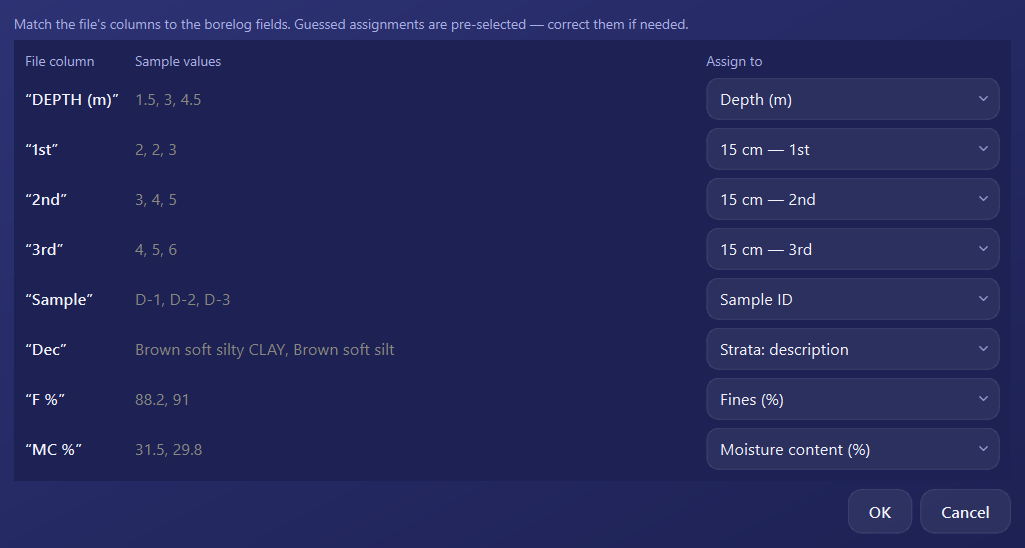
Right-click a project in GeoEQ SPT Logs and choose Import borehole, then pick an .xls, .xlsx or .csv file. The office BH-xx template imports in one click. Any other table opens the Assign columns window, where you correct the guessed mapping and press OK.
- .xls .xlsx .csv
- file types the import reads
- 1 click
- to import the office BH-xx template
How do I import an Excel or CSV file?
- Right-click the project in the explorer and choose Import borehole. To bring data into a borehole you already have, right-click it and choose Import data, or use the Import Excel button in its borelog tab.
- Select an
.xls,.xlsxor.csvfile. CSV files can use commas, semicolons or tabs. - For the office template, the borehole appears at once. For any other file, the Assign columns window opens.
The new borehole takes the file’s name, which you can change afterwards with Rename.
What is the office BH-xx template?
It is the office Excel workbook with a header block, an SPT input sheet and a borelog sheet. Importing it creates the borehole with its header, samples, blow counts and strata in one click, with no mapping step.
How does column mapping work?
For any other Excel or CSV table, the Assign columns window lists each column of the file with sample values and a guessed target field. The guess works from the column name and the values, so “Dec” is assigned to Strata description and “SPT N” to the N-value.
Correct anything that was guessed wrongly using the drop-down beside it, set unwanted columns to ignore, and press OK. The rows are inserted into the new borehole.
| Target field | Goes to |
|---|---|
| Depth | SPT & samples |
| 15 cm: 1st, 2nd, 3rd | SPT & samples, blow counts |
| SPT N-value | SPT & samples, direct N |
| Sample ID, Sample type (D/UD) | SPT & samples |
| Fines, LL, PI, qu, Moisture content | SPT & samples, lab columns |
| Strata: description, to depth, soil type (C/S/M/G/F/O/R) | Strata |
What happens to the data?
- A file with only an N column, and no blow counts, works. The N goes into the direct-N column.
- Consecutive rows with the same description merge into one stratum automatically.
- Units are not converted. Imperial and Metric change labels only, so enter or import values in the unit the project uses.
Afterwards, open the borehole and review the SPT & samples and Strata tabs, then complete the Header tab, which the file may not have filled in.
Common problems
A column was guessed wrongly. Change its target in the Assign columns window before pressing OK.
Strata look merged. Identical consecutive descriptions become one layer. Make sure different soils do not share exactly the same text.
Only a few rows. Copy and paste from Excel straight into the table instead. The input tables accept Excel-style paste.
For a walkthrough, follow the tutorial on importing boring log data from Excel. With version 1.3 you can also ask an AI assistant to import a workbook of boreholes through Connect AI.
Step-by-step tutorials
Frequently asked questions
Can I import an Excel file into GeoEQ SPT Logs?
Yes. Right-click the project, choose Import borehole and select an .xls, .xlsx or .csv file. The office BH-xx template imports directly. Any other table opens the Assign columns window so you can match its columns to the borelog fields.
What if my file has only N-values and no blow counts?
It works. When the file has only an N column, the values go into the direct-N column of the SPT & samples tab.
Are units converted when I import?
No. Units change labels only, and values are never converted. Make sure the numbers in the file are in the unit the project uses.
What happens if I cancel the Assign columns window?
The empty borehole that was created for the import is removed again, so cancelling leaves the project as it was.